How it works
Four steps to run a show. Every user interface follows along to one source of truth: you.
Performers sign up in Front Row on their phones. You (the host) shape and run the show in Backstage. The room watches the live program on Front Row (their phones) and on Big Screen (streamed to the venue's TVs). Every screen is magically kept up to date with your host view, and every performer knows exactly when they're on. The result is the smoothest-running show you'll have ever been to.
Step 1 · Sign up
The performer signs up to the show
They scan a QR code or type in the URL to Front Row – the audience interface on StageQueue. There's no app for them to download, and no account required. It takes them two minutes to get from “I'd like to perform” to having a slot in your show.
The show list
Every upcoming show listed on your homepage
Front Row lists every show you're running. Sign-ups open when you say so; the rest display their date and stay closed until signups open.
- Open for signups? — Easy at-a-glance overview of shows that are open for new signups, or the date that the list opens
- Already signed up? — Performers can see at a glance if they're already signed up for one of your shows

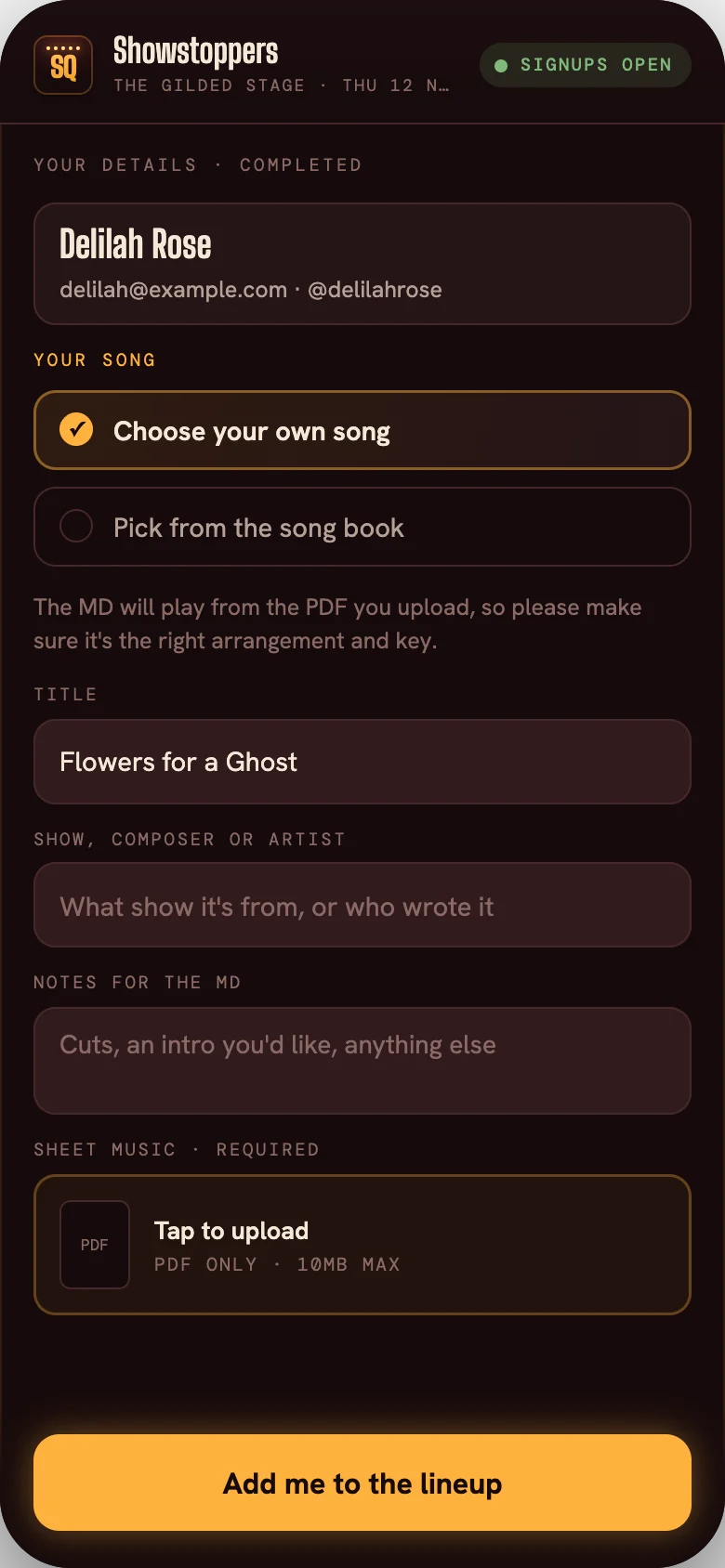
The sign-up form
Within two minutes, you're on the list
Complete your personal details and upload your song choice and any sheet music.
- Got specific notes for the MD? — Whatever's on your mind: key, cut, vamp – anything you need to communicate in advance of taking the mic.

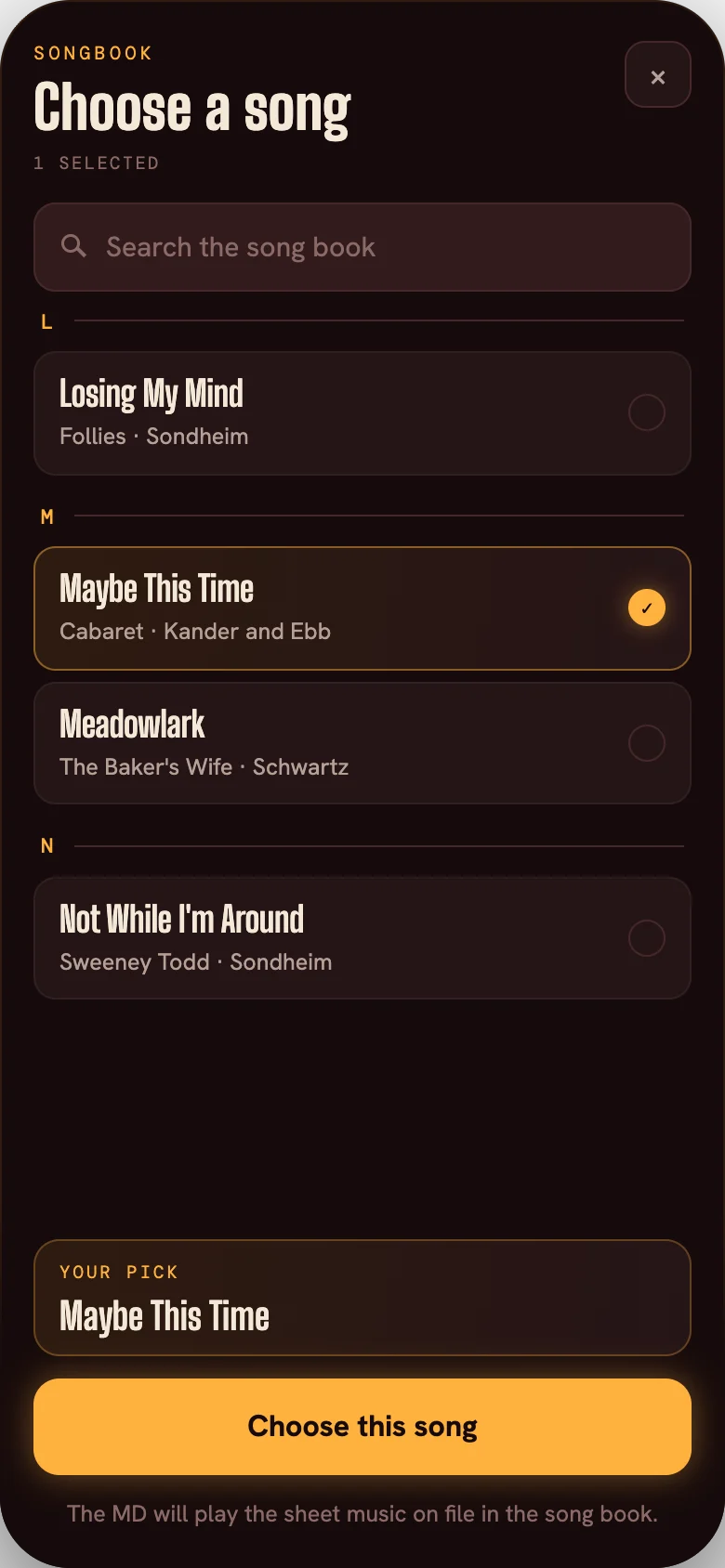
The songbook
Get inspiration from the host's songbook
Struggling to choose a song of your own? The host can choose to make their entire songbook available. Then performers can easily browse, search and pick a song from their book instead.
- Quick links to existing sheet music — The host can link songbook items to existing PDFs or ForScore library items.
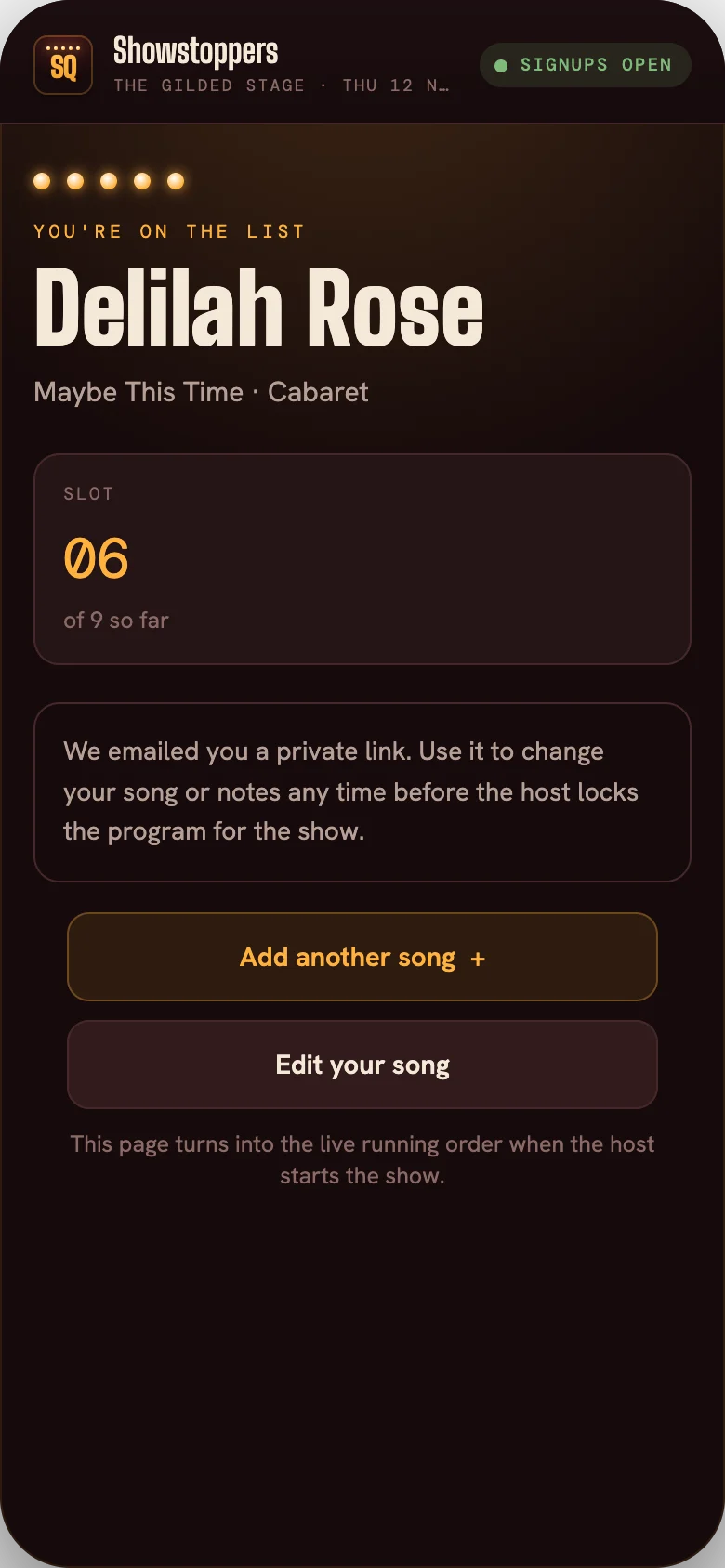
Confirmation screen
Immediate confirmation of the signup
Performers see their running order slot straight away in Front Row, and immediately receive an email with a private link to change their song choice or edit notes – right up until you lock the program.
- More than one? — Performers can sign up for more than one slot if they want. Hosts can decide what to accept and what to exclude from the show.
- Changed your song choice? — Or changed your mind completely? StageQueue allows performers to make edits.
Step 2 · Create the show
The host crafts the show in Backstage
Sign-ups land in Backstage, the dedicated host interface, as they arrive. You turn that list of requests into a show – it's as easy as building a music playlist.
Before the show
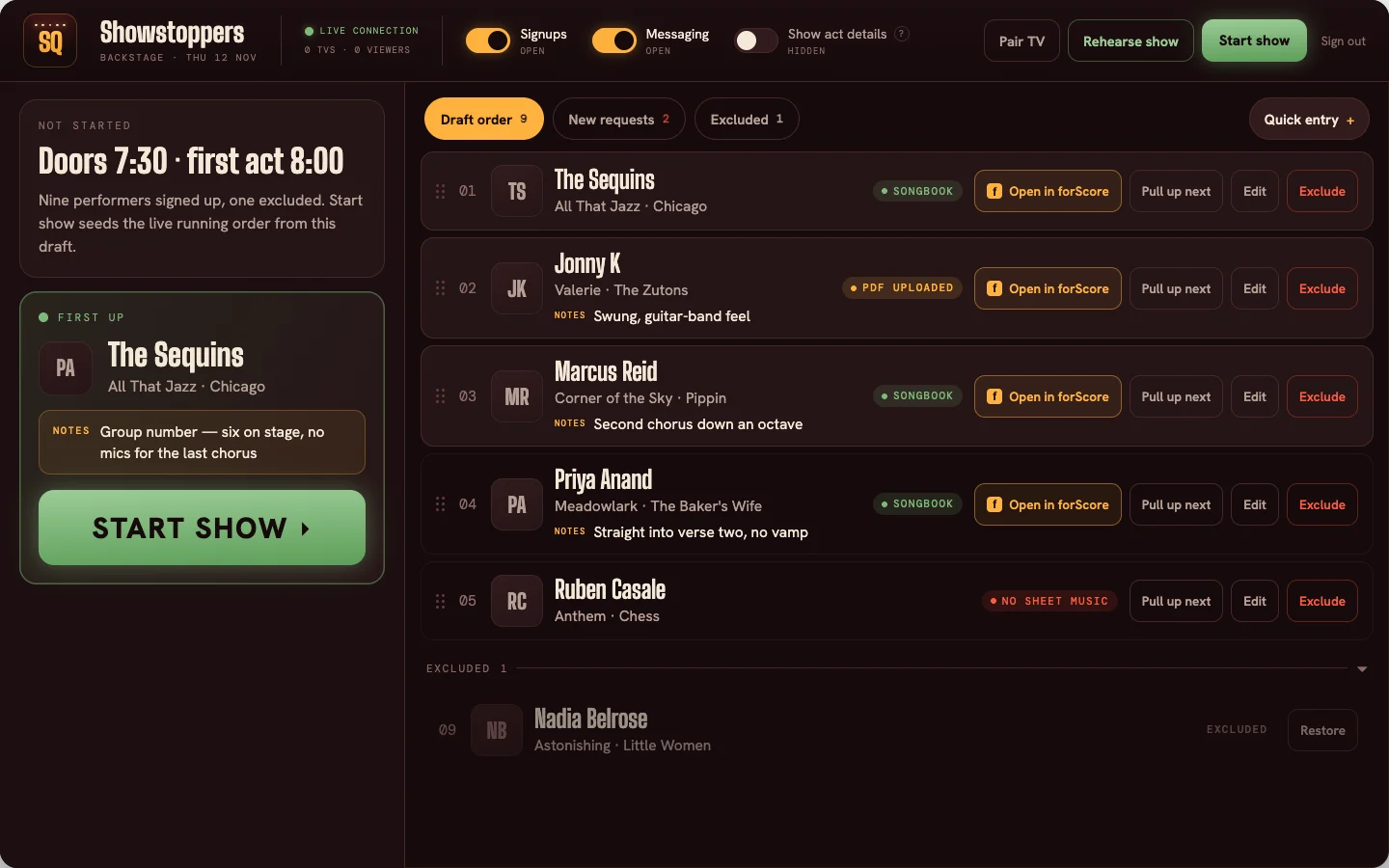
All of the signups turned into a run-of-show
Every sign-up gets a row: the performer, their song choice, any notes, links to sheet music (whether they were uploaded or linked to an existing songbook item).
- Drag to reorder — Pull somebody up next, or move them wherever you want on the list
- Spotted errors or spelling mistakes? — Easily make edits to any of the performer-supplied details before they get shown to the audience.
- Last minute walk-ups? — Easily add an act through the Quick Entry box.
- Rehearsal mode — Run the whole show, and choose whether to save or discard edits made during the rehearsal.
Ensure sheet music is ready
Quickly understand where all the sheet music is, and what still needs sourcing.
Every row clearly shows where its sheet music is. Performer own-choices (with their uploaded PDFs) are one tap away. Songbook items on file are clearly marked and linked (complete with one-touch forScore links if matched to your library).
- Anything missing is marked in red — so the host can either source it themselves or chase it up with the performer before the show starts — no surprises during a live show.
- Happy to source music? — Allow "relaxed signups" during show setup, and performers can ask you to source music for them. These options are automatically disabled during a live show.
Step 3 · Run it live
Run the show from your device, and everyone follows
Start the show in Backstage and Front Row's Live mode kicks in at once – performers and audience members following along on their phones, and any connected TVs you've setup with Big Screen at the venue springs to life.
Backstage during a live show
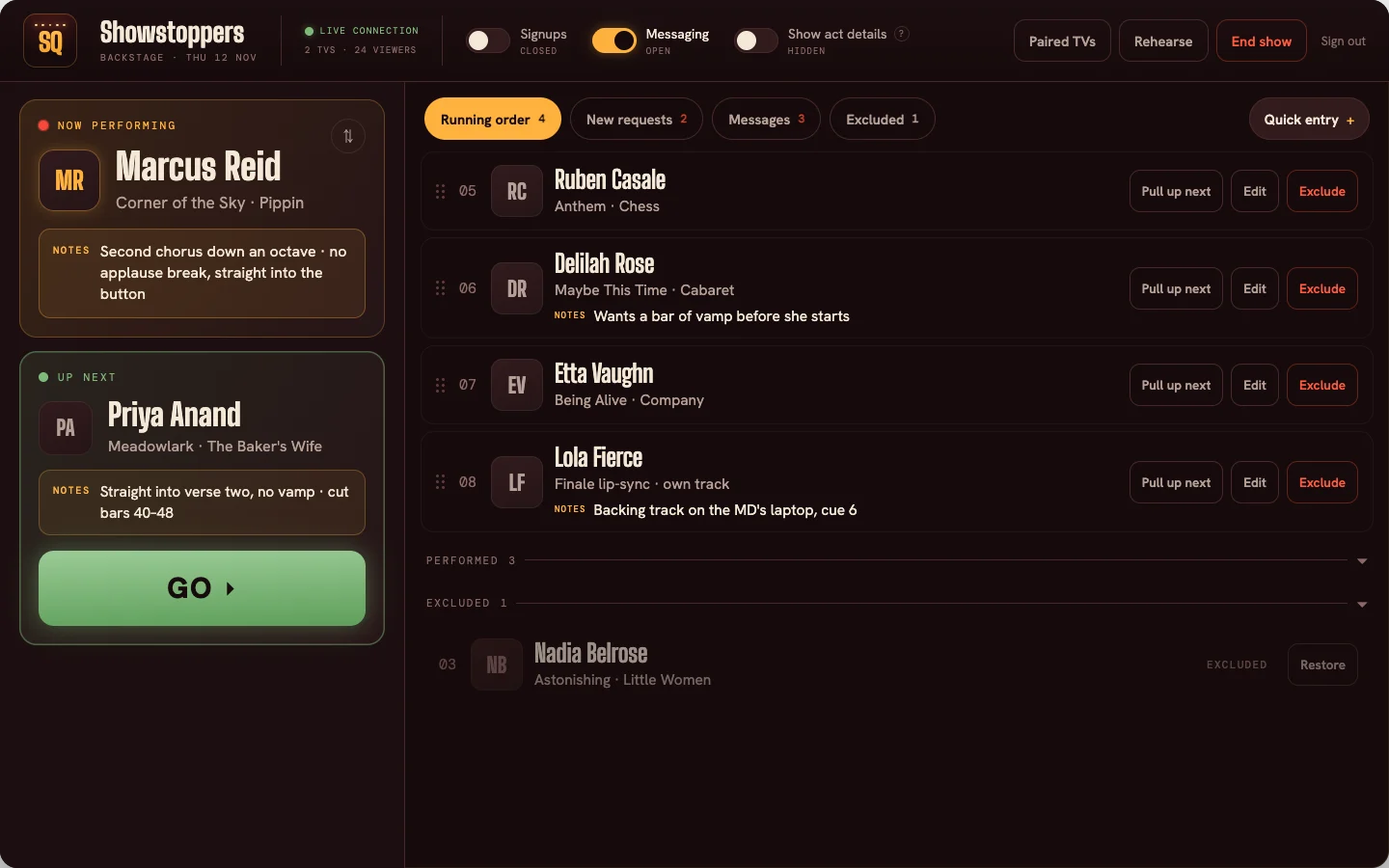
All the controls and information you need to run the show.
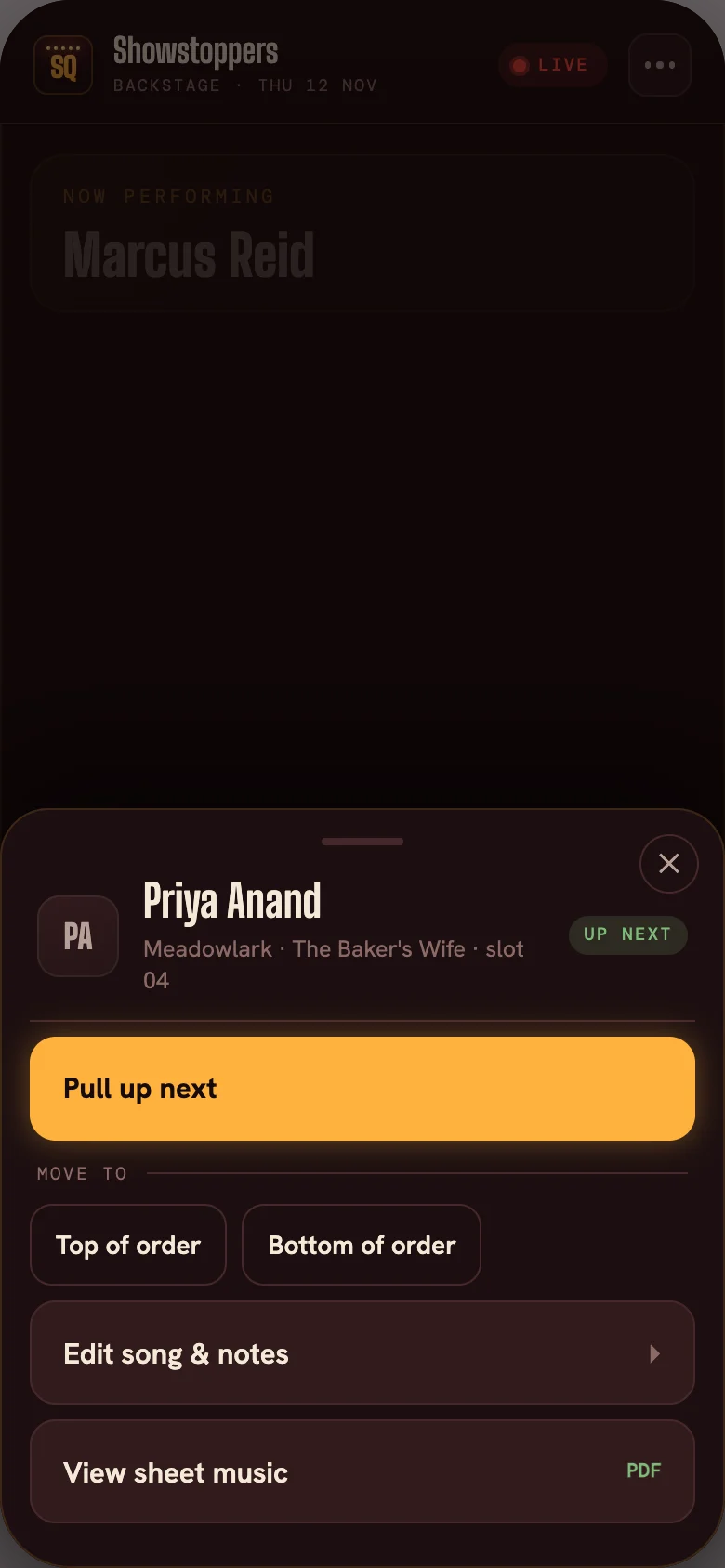
The left side of the screen is the show's current status: who's performing, who's up next – including their song choice, notes and one large green "GO" button. The right pane is everything else – the rest of the running order, new requests that have come in since you opened the show, any messages, and any acts you've excluded. Nothing on this screen needs a second person.
- The GO button — advances the show
- Reorder the show — and every other screen connected to the show updates at once
- Exclude — remove an act from the run-of-show
- Got a full show? — Easily close or reopen signups
Pair TVs at the venue
Got TVs? Make them part of the audience experience
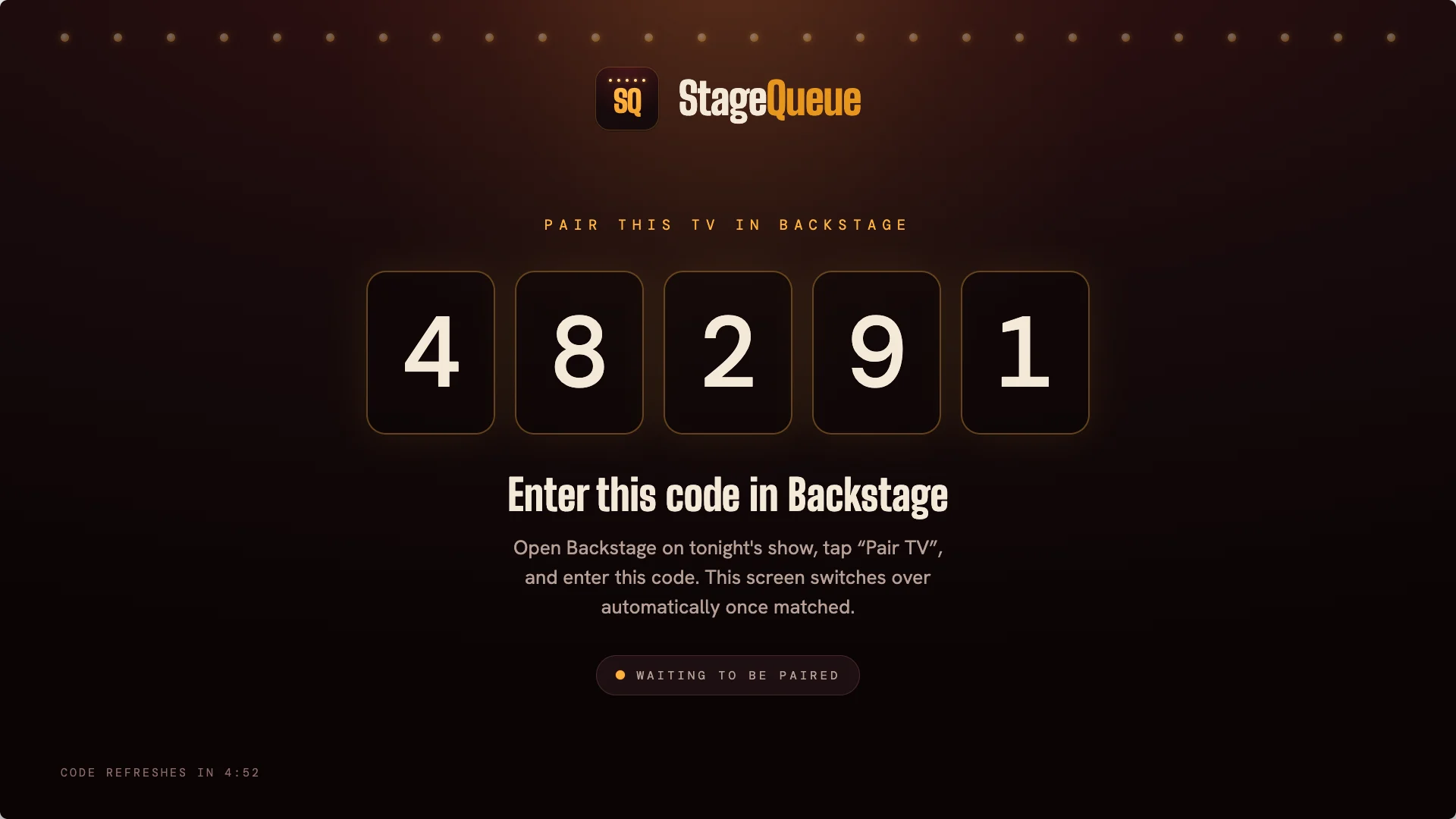
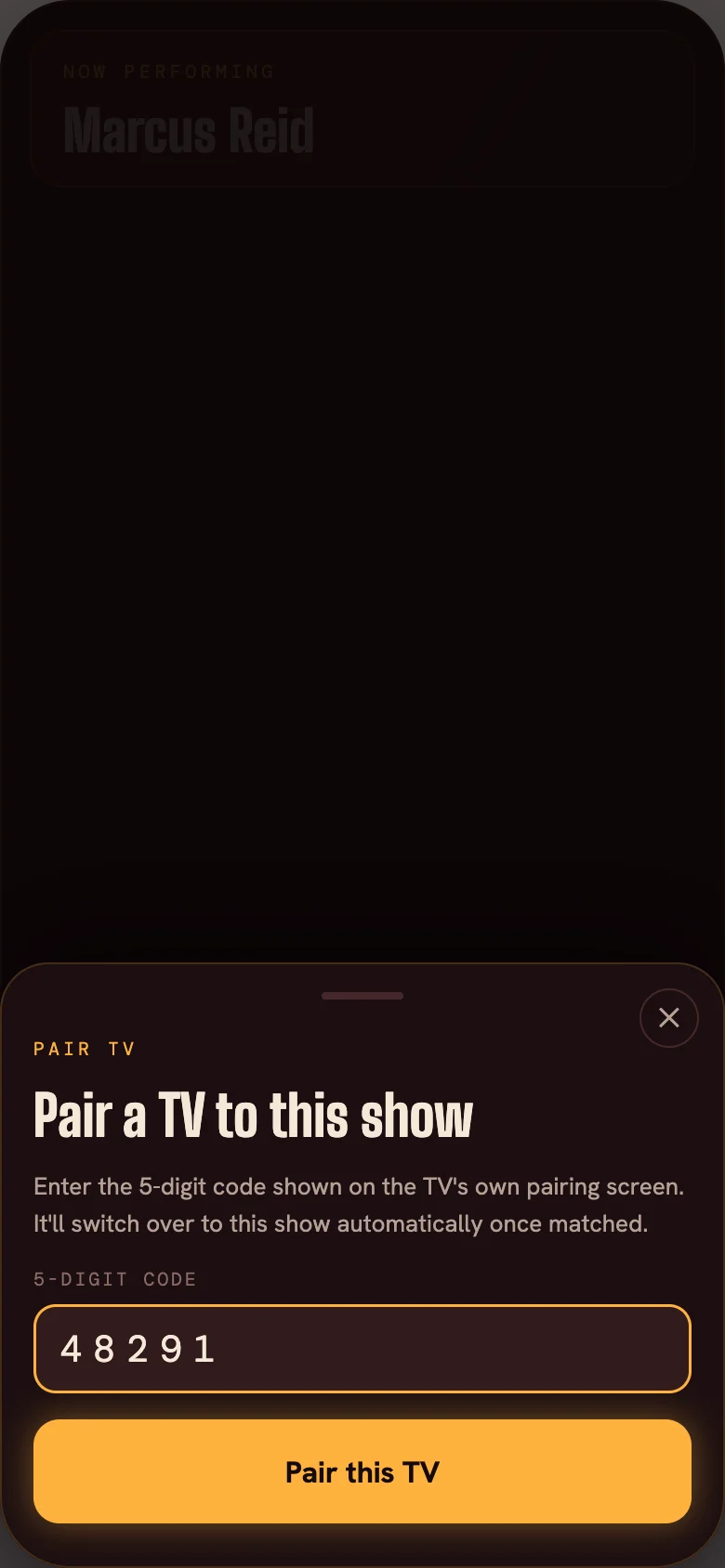
Open StageQueue.app/tv on any screen in the building. It'll present a five-digit code which you type into Backstage and the TV instantly tunes into Big Screen – the live view of your show optimized for TVs. You can pair every TV in the venue if you wish, and revoke them at any time.
- Any smart TV or streaming device — Big Screen works on any web-connected smart TV with a web browser or streaming sticks like FireTV
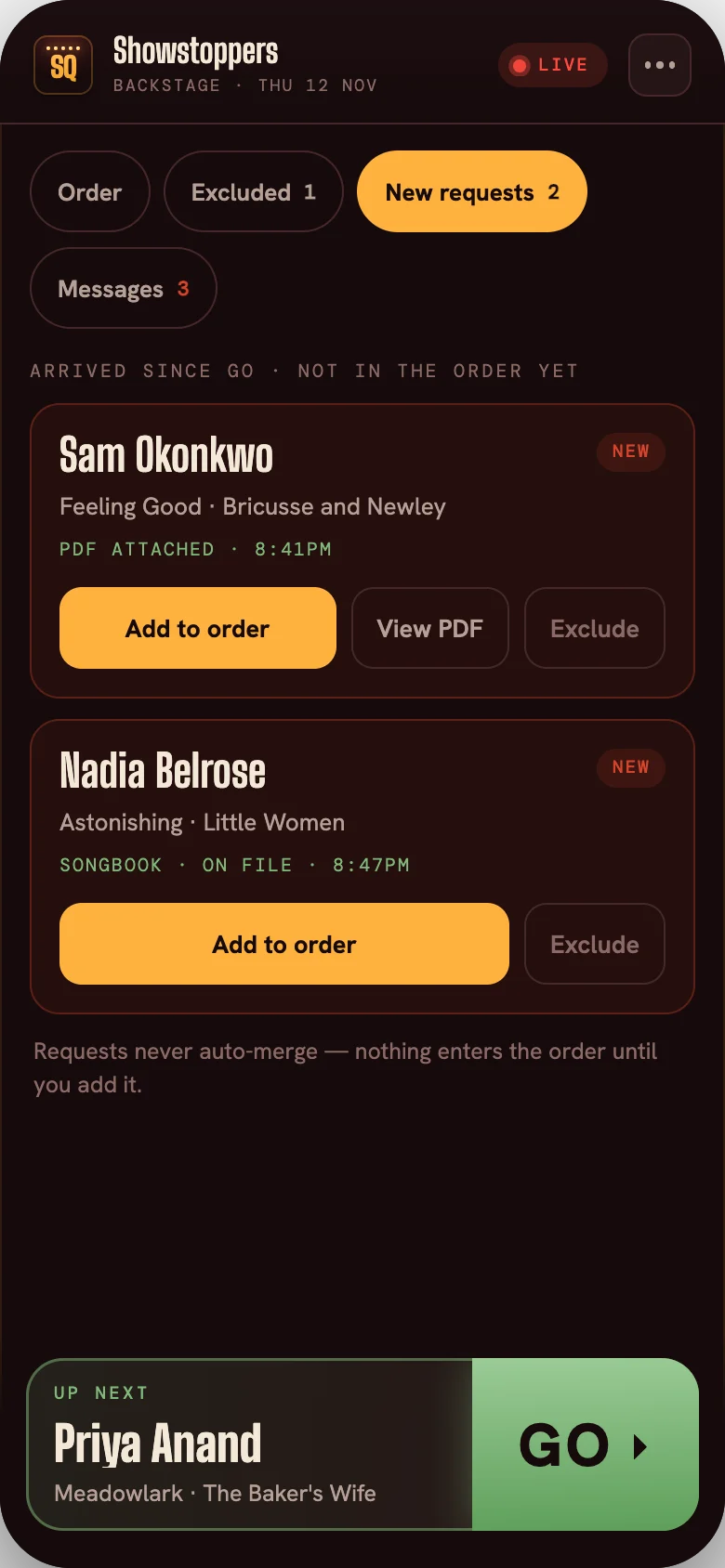
Late sign-ups await your review
New requests wait in a holding area until you approve them.
Sign-ups sent in after the show starts never reach the run-of-show or audience screens on their own. They sit in "New requests" until you accept them.
- Insert anywhere — up next, top, or bottom of the running order
- Withdrawn acts — get removed from Front Row and Big Screen, and you get notified in Backstage
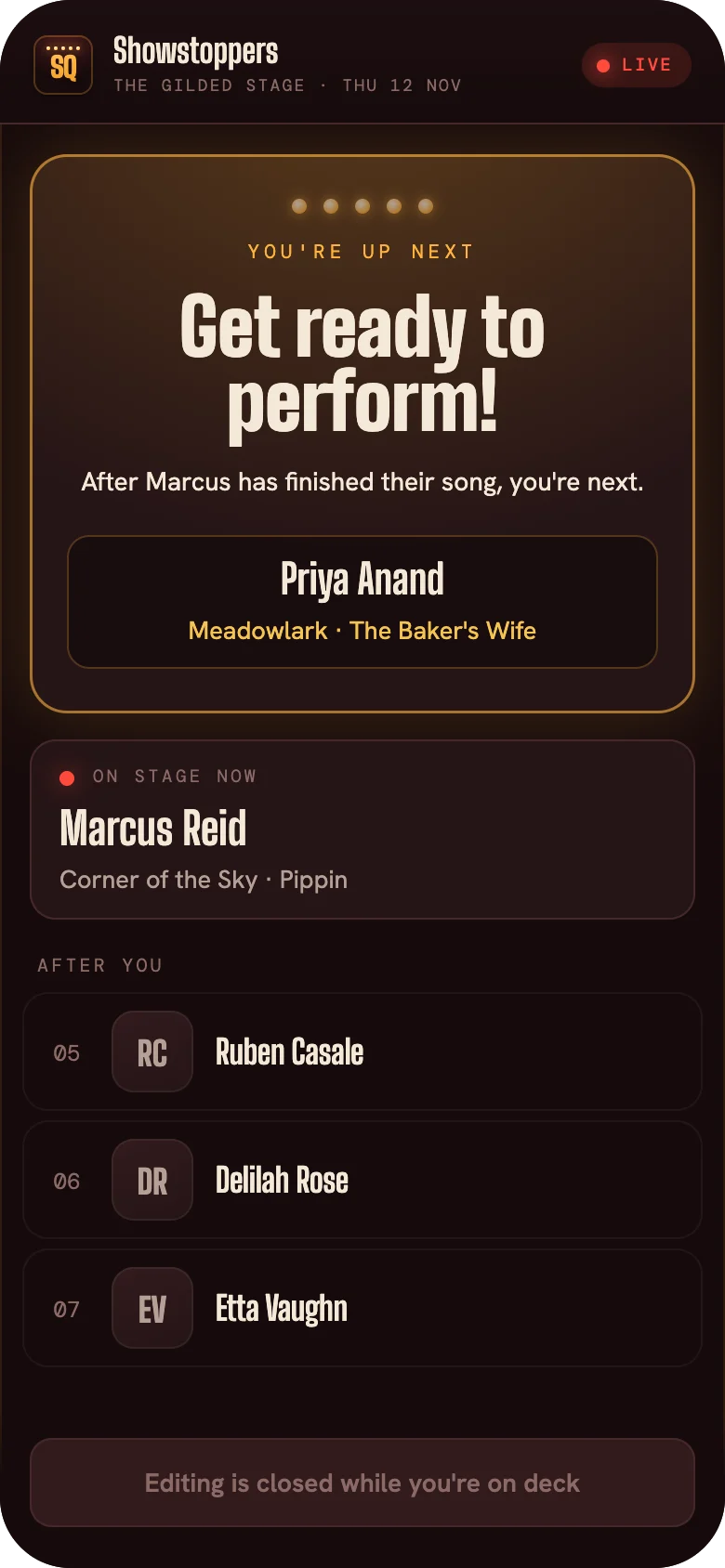
The entire room stays up-to-date
Every phone and TV at the show says the same thing.
Front Row shows now performing, up next, and the names still to come — upcoming song names can stay a surprise, or you can choose to display them. Big Screen shows all of the same details but designed for the TV interface. It's like controlling a show in QLab but all of the moving pieces are performers and their acts, and instead of lighting equipment it's screens!
- Different Big Screen states — for pre-show, live, post-show. Including QR codes for signups and tipping, plus sponsor callouts (if enabled).

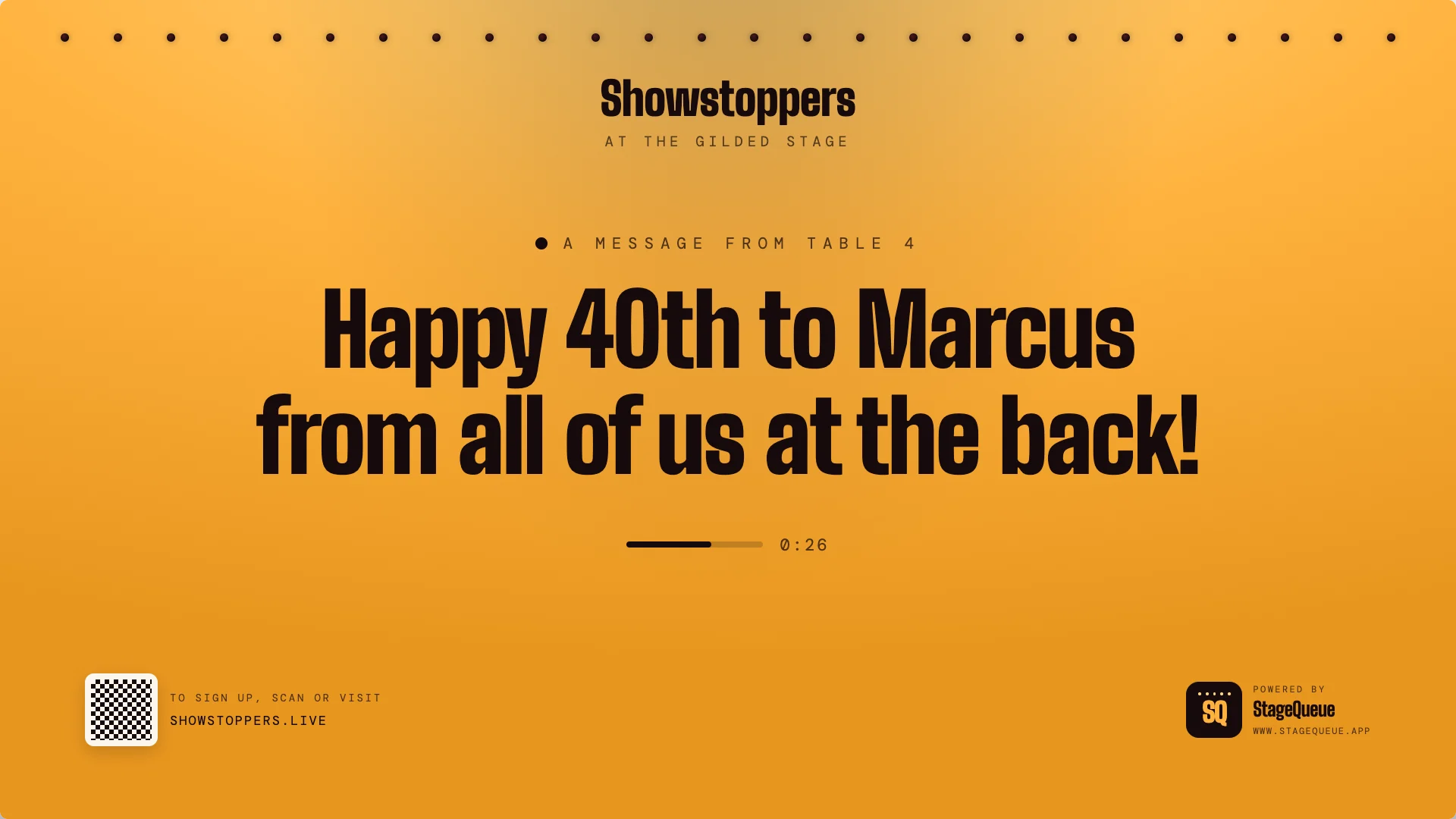
Receive and share messages
The room can send you messages through Front Row. You can choose to share them on Big Screen
Anyone on the Front Row Live can message the host. You can read them in Backstage whenever you're ready, and send the good ones to every paired TV tuned to Big Screen for a period of time, after which they revert to the live show.
- Messaging toggle — open or close messaging at any time with a simple switch in Backstage
Step 4 · Wrap it up
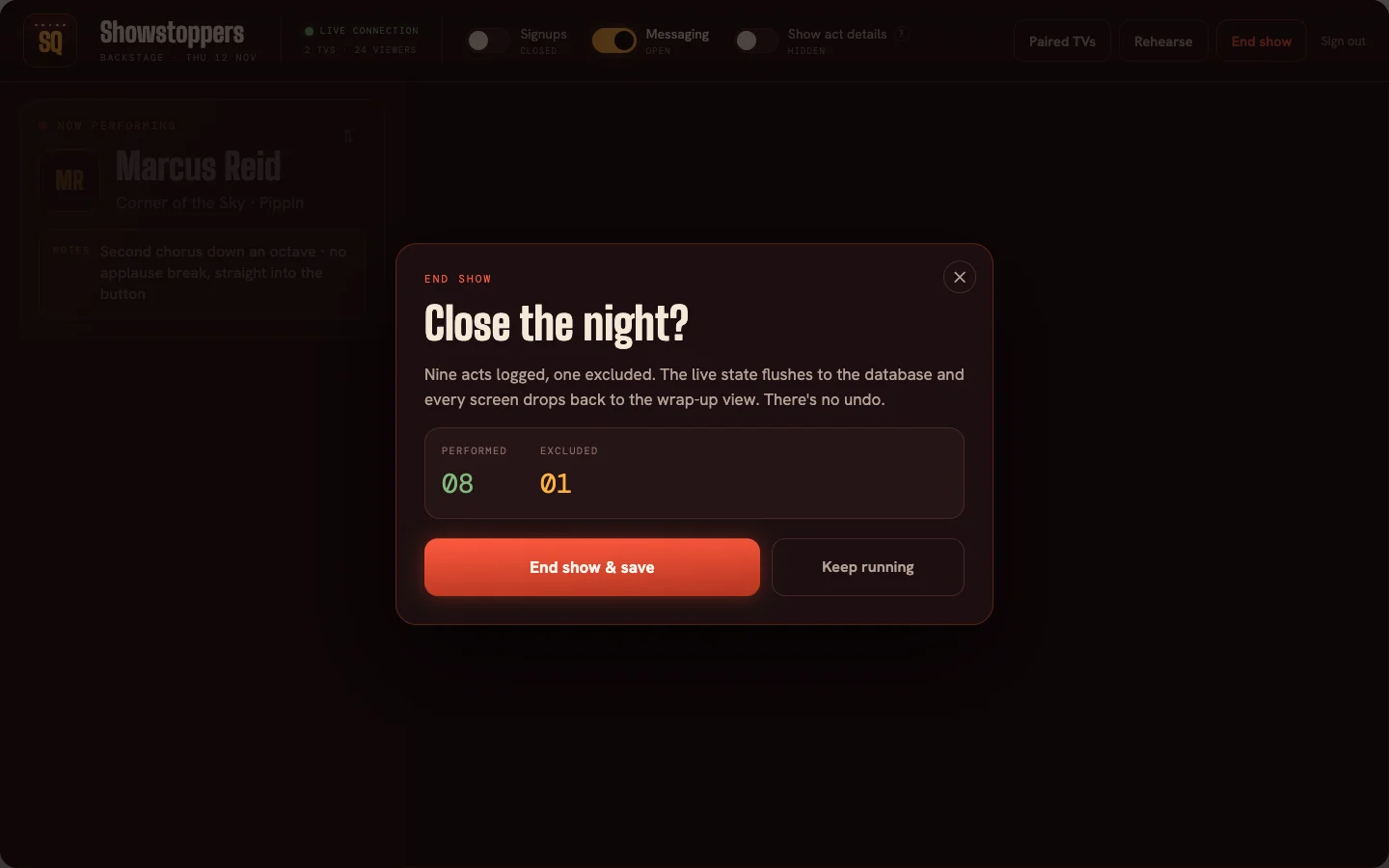
End the show, and StageQueue cleans everything up.
When it's time to close the curtains, one button wraps up the show.
Close the show in Backstage
Trigger the show wrap on every UI, instantly.
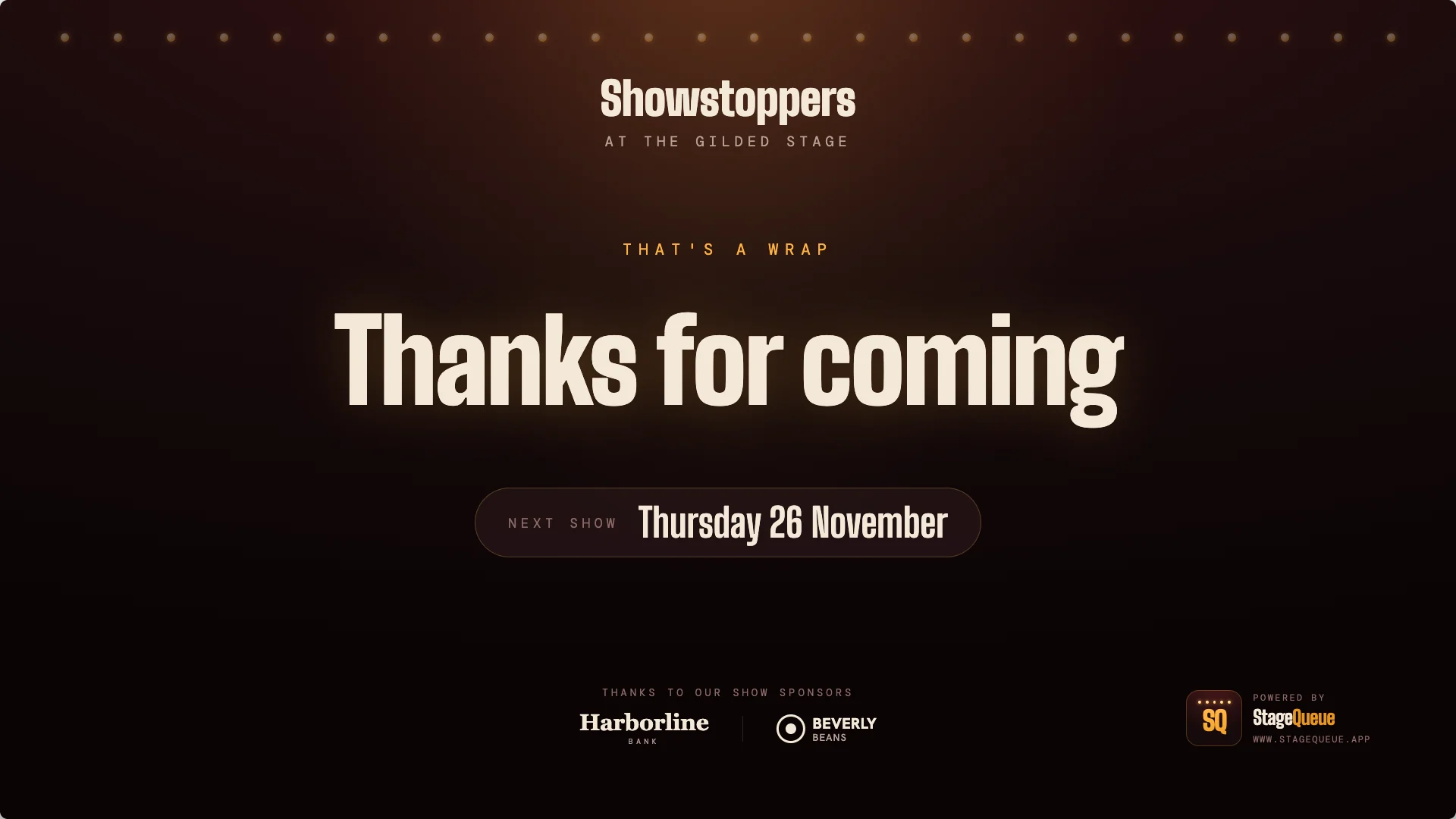
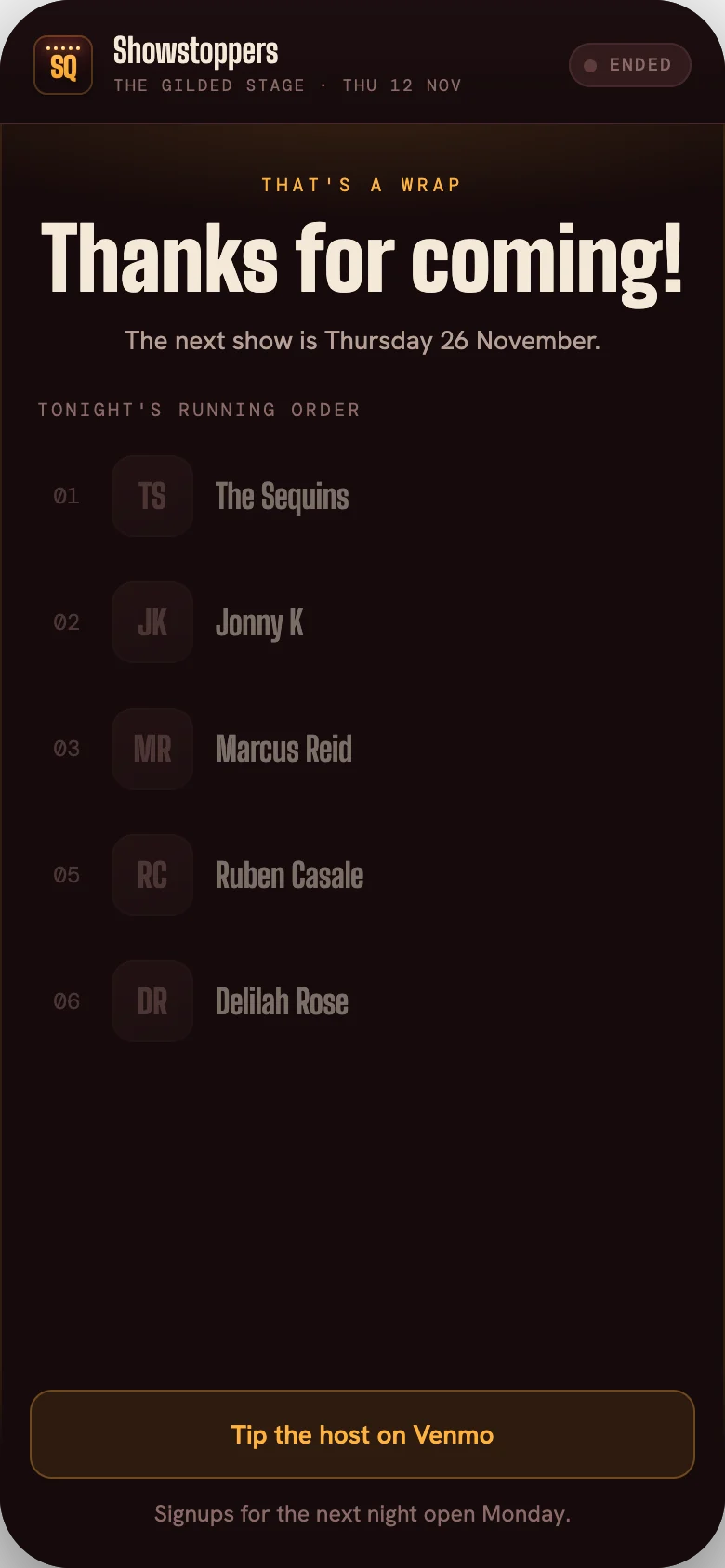
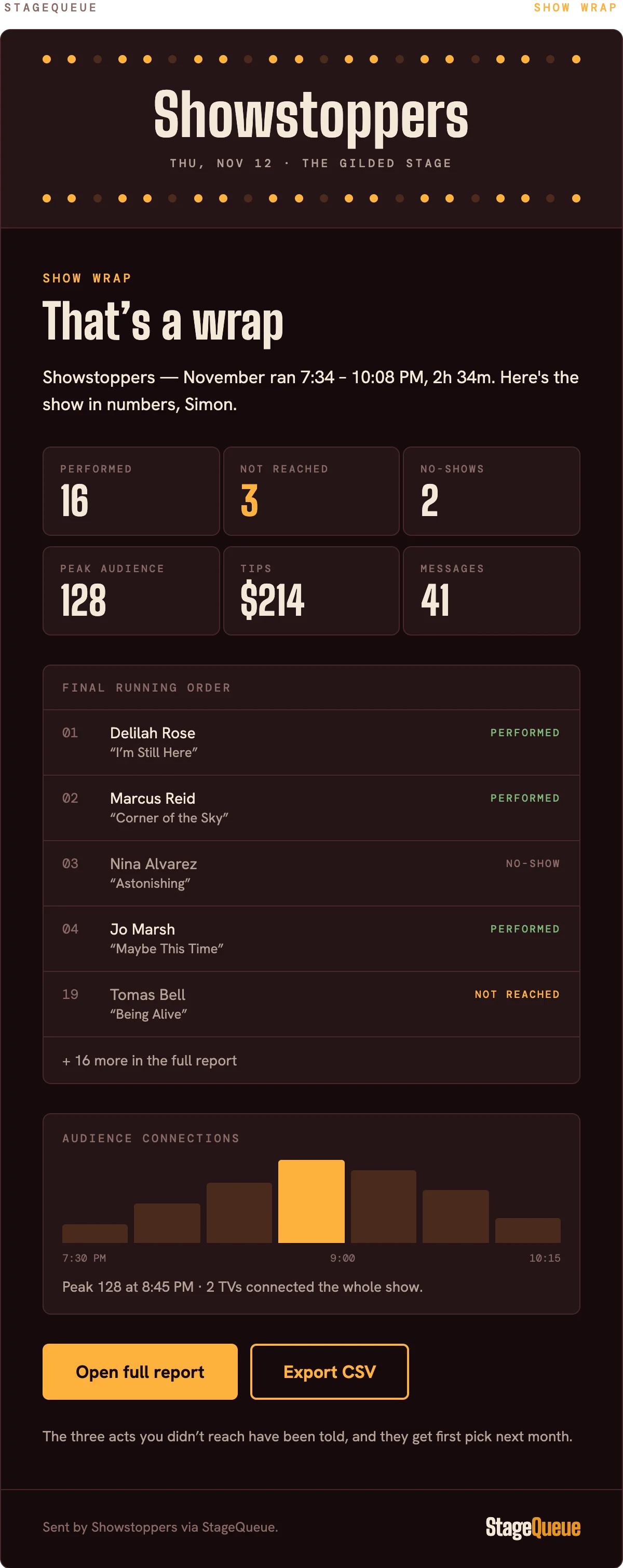
Once every act has performed, StageQueue wraps everything up. Front Row and Big Screen devices immediately move to your "Thanks for coming" message and begin promoting your next show. And Backstage produces the show wrap report – who performed, who was excluded, and the final running order with durations and timestamps. Every screen gets updated before the applause has had a chance to die down, and the report gets emailed to hosts as well.
In the room
Thanks for coming – and here's the next show.
Front Row shows the running order as performed. Big Screen says thank you, thanks the sponsors, and promotes your next show automatically. Optional tipping through Venmo lives on the performer's and audience's phones, never on the TV.
- Front Row — the running order as performed on phones
- Big Screen — thanks, sponsors, next show on TVs
In your inbox
The wrap email, sent to every host automatically.
Performed, not reached, no-shows, peak audience, tips and messages – with the final running order and a graph of how many people were watching through Front Row. You can open the full report in the admin portal or export the CSV.
FAQs
Frequently asked questions
No. Front Row (the phone-based interface for performers and the audience) and Big Screen (the TV interface) all use a web page. Hosts sign in to Backstage in a browser.
Yes. Backstage works on any device – including a phone – with the same GO, reorder, exclude and pair-TV controls. The desktop layout just provides slightly easier, one-click access to all of the functions – so it's somewhat quicker for a host to action things during a show.
Screens reconnect on their own and show “Reconnecting…” meanwhile. A live show is never ended by a poor connection – the show runs in the cloud and is advanced/controlled by hosts on their devices.
Yes – "Signups" is a simple toggle for hosts to switch on or off at the top of Backstage. When signups are closed, the performer form disappears in Front Row and is replaced with text explaining the lineup is full.